In this research blog, I will be researching a number of dev tools available on Unity with the purpose of creating a dev tool or building upon my dev tool to create assist game designers with getting the functionality that they want, without doing the scripting.

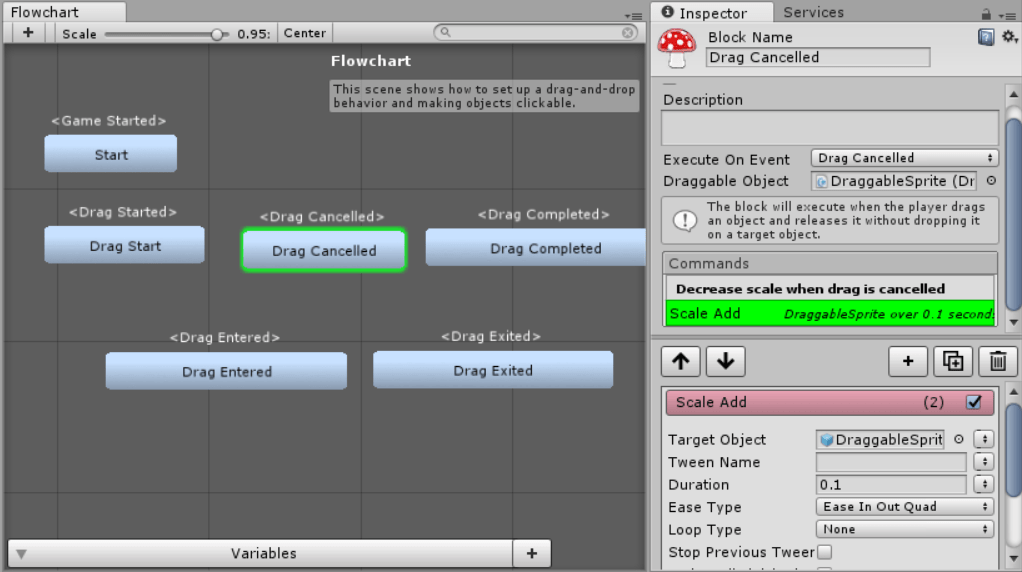
Fungus is an open source visual scripting tool designed for unity for writers, illustrators, animators and game designers. Fungus is a system based on flowcharts and other assisting scripts, they help visualise the code for people. The Fungus tool adds this extra Flowchart window which allows for the visualisation and creation of blocks in the game. The flowcharts are generally used under a blank GameObject with the flowchart script, the blocks consist of a trigger and a list of easy to understand commands. Objects are able to have their own flowcharts with their own blocks that are triggered. Most of Fungus is text oriented to help with conversations or menus and instruction dialogues. The main part of developing this tool further would be to create more and more options for Commands on the flowchart blocks.
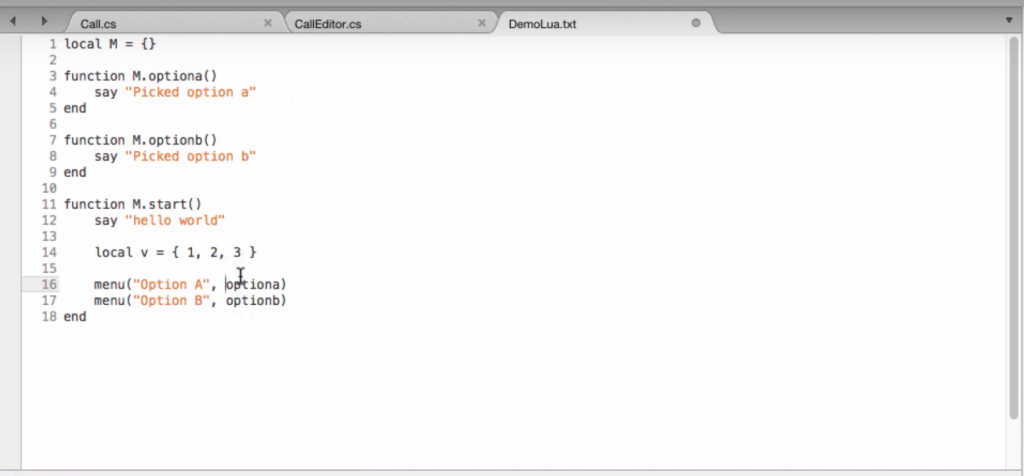
Fungus also includes a scripting tool called FungusLua, which is simply way to embed Lua scripting into the Unity Project. At its core, FungusLua allows you to control any Unity object from Lua script. It has useful utilities for using Fungus flowcharts and dialogs, persisting variables between scene loads, localisation and working with the Unity Test Tools. It allows designers to script Fungus commands from a text file or spreadsheet, this is technically not our goal as we want designers to not have to open up a text editor at all and be able to have the functionality that they want.
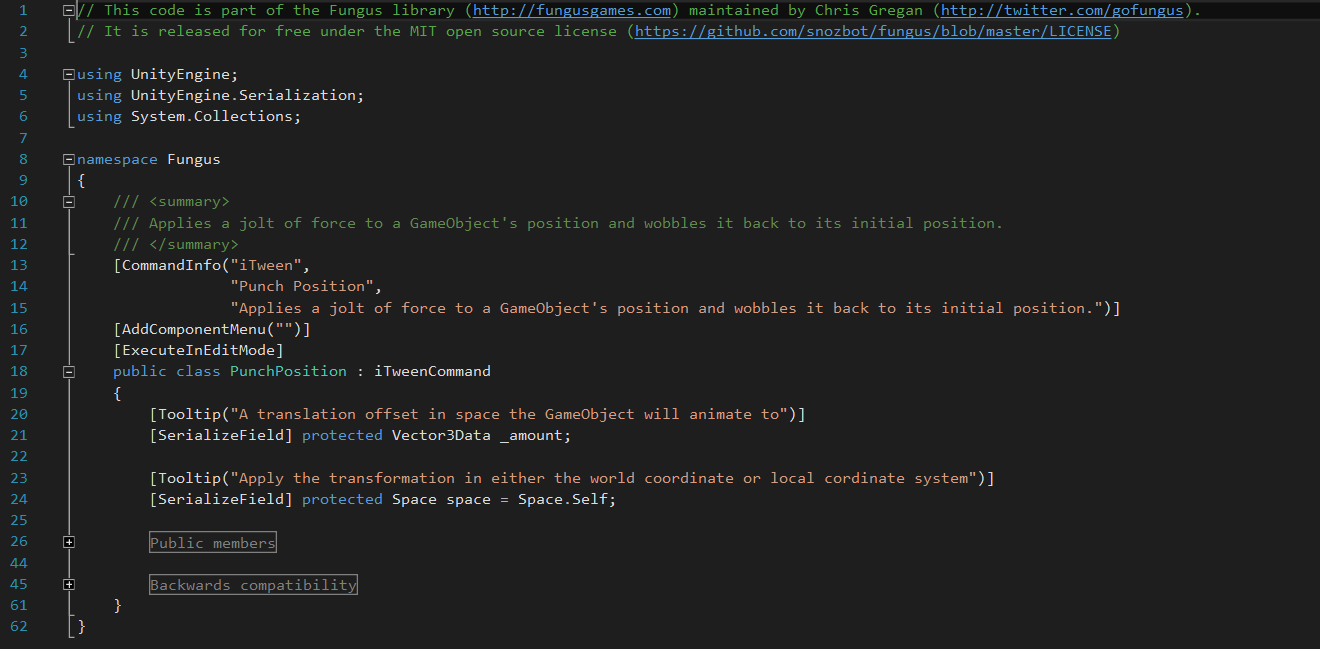
Therefore developing the tool focused on Fungus will include creating more commands for the flowchart blocks.
Node Editor Framework
The next Unity development tool to explore is the Node Editor Framework, which is a flexible and modular Node Editor Framework for creating node based displays and editors. An example for the node editor can be found here.
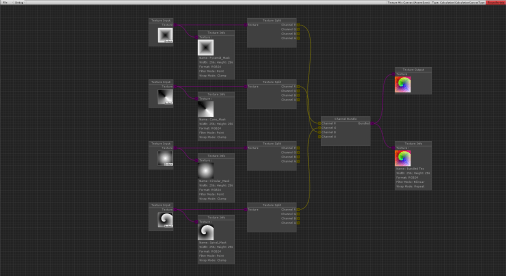
Creating a node is fairly simple, the bulk of the work that we would have to do is creating the nodes that are relevant to missile command mechanics. You can find the code for an example node below:
namespace NodeEditorFramework.Standard
{
    [Node (false, "Example/Example Node")]
    public class ExampleNode : Node
    {
        public const string ID = "exampleNode";
        public override string GetID { get { return ID; } }
        public override Node Create (Vector2 pos)  { ExampleNode node = CreateInstance (); node.rect = new Rect (pos.x, pos.y, 150, 60); node.name = "Example Node"; node.CreateInput ("Value", "Float"); node.CreateOutput ("Output val", "Float"); return node; }
        protected internal override void NodeGUI ()
        {
            GUILayout.Label ("This is a custom Node!");
            GUILayout.BeginHorizontal ();
            GUILayout.BeginVertical ();
            Inputs [0].DisplayLayout ();
            GUILayout.EndVertical ();
            GUILayout.BeginVertical ();
            Outputs [0].DisplayLayout ();
            GUILayout.EndVertical ();
            GUILayout.EndHorizontal ();
        }

        public override bool Calculate ()
        {
            if (!allInputsReady ()) return false;
            Outputs[0].SetValue (Inputs[0].GetValue () * 5);
            return true;
        }
    }
}
NodeCanvas and NodeEditorState, basically the canvas stores all the nodes and any additional information directly related to the Canvas. In contrary, the EditorState holds all information on the state or how the Canvas is presented. This Node Editor framework is still being developed and therefore would include a lot of work in order to get the result that we want, which is a development area where the designers can recreate their missile command games without having to write a single line of code.
Playground Project
A mission of one of the Technical Evangelist at Unity was to present a workshop to young kids how to introduce them to Unity. But without the in-depth knowledge of programming they were unable to fully capture their imagination on making games, therefore he created a framework simple enough to be able to have a full game creation experience. The blog for his experience and methodology can be found here.
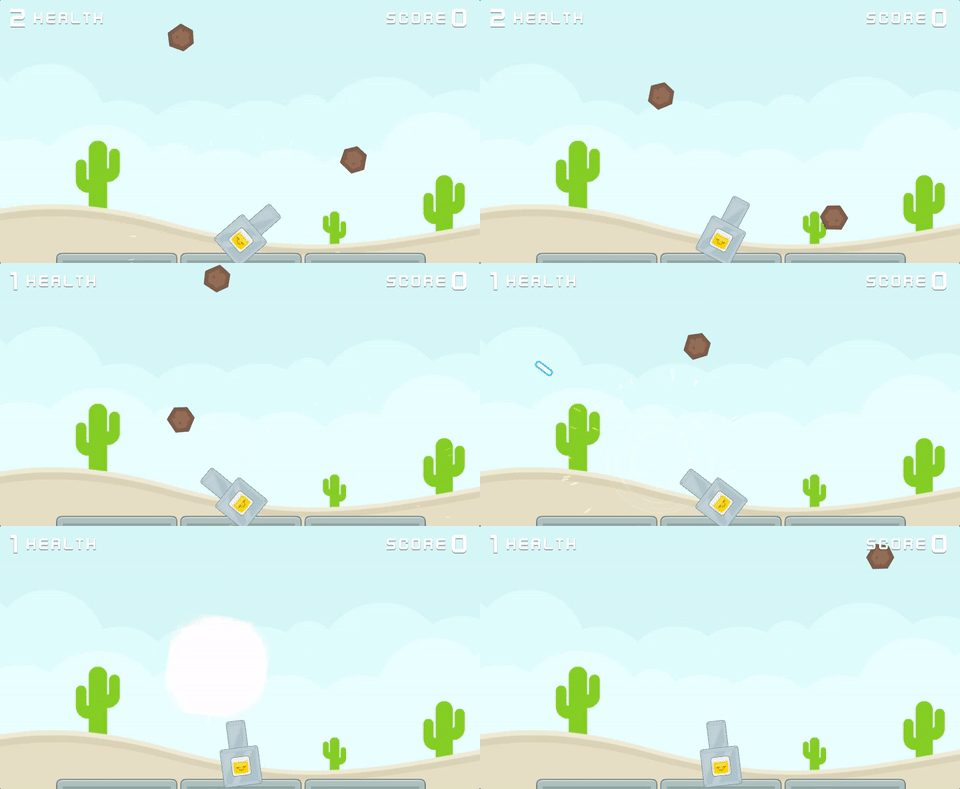
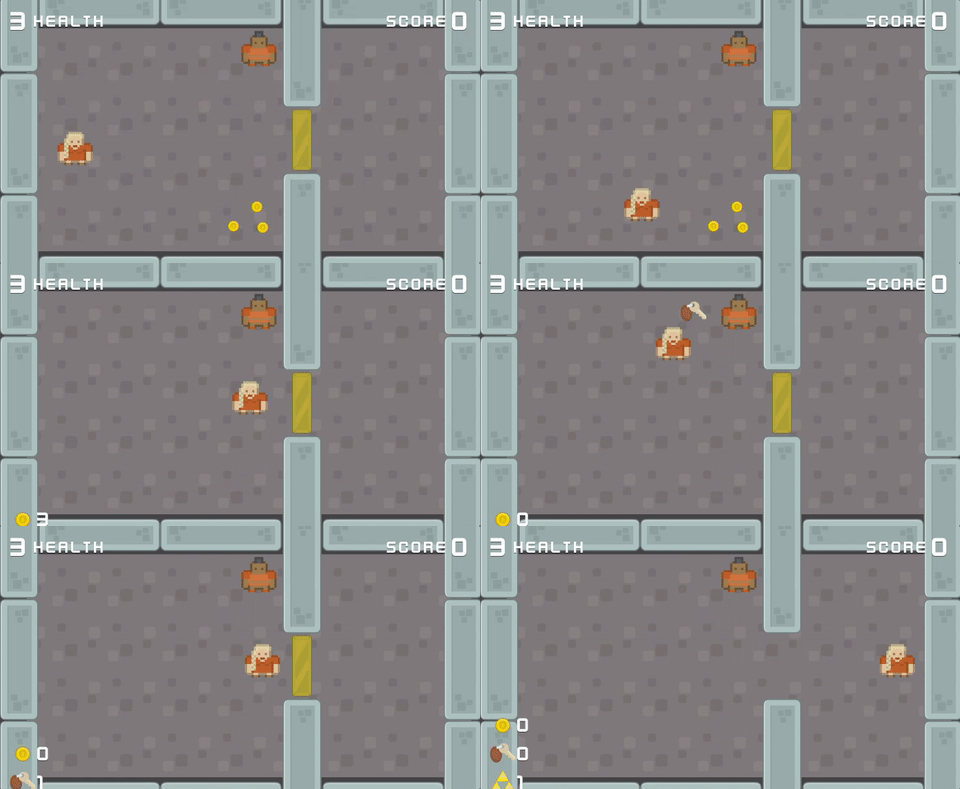
The project is intended to be as flexible as possible apart from being a 2D game and physics powered. The project contains a lot of scripts that perform atomic tasks, meaning that they do one thing, but combining them means that you can perform any kind of gameplay. This is the simplest form of a visual scripting development tool, it utilises Unity’s inspector and the ability to create custom inspectors to create small scripts that combined would create the functionality that they want. The main work that is required to get this to the working state we want is to create it to be compatible with 3D play area and to create more scripts so that we ensure we encapsulate all possible functionality needed to be covered for all the missile commands.
Conclusion
After careful deliberation and looking over the requirements for the projects, I’ve come to the conclusion that developing the Fungus tool towards our goal of developers being able to recreate their missile command games through visual scripting. Fungus encapsulates a deep level of visual scripting through it’s flowcharts and has a framework for us to work on through the commands that are available.

Leave a comment